
Summary: What you will learn
This guide covers exactly how to use AI Productivity & Work Automation to stop wasting time on repetitive digital chores. You’ll learn the core causes of productivity drags, which tools actually work (and which don’t), a step-by-step setup plan, real-world use cases, common mistakes that break automations, a comparison table of top solutions, advanced pro tips, and an FAQ based on real search data. By the end, you’ll have a working automation system custom to your daily workflow.
The 3 PM Feeling You Know Too Well
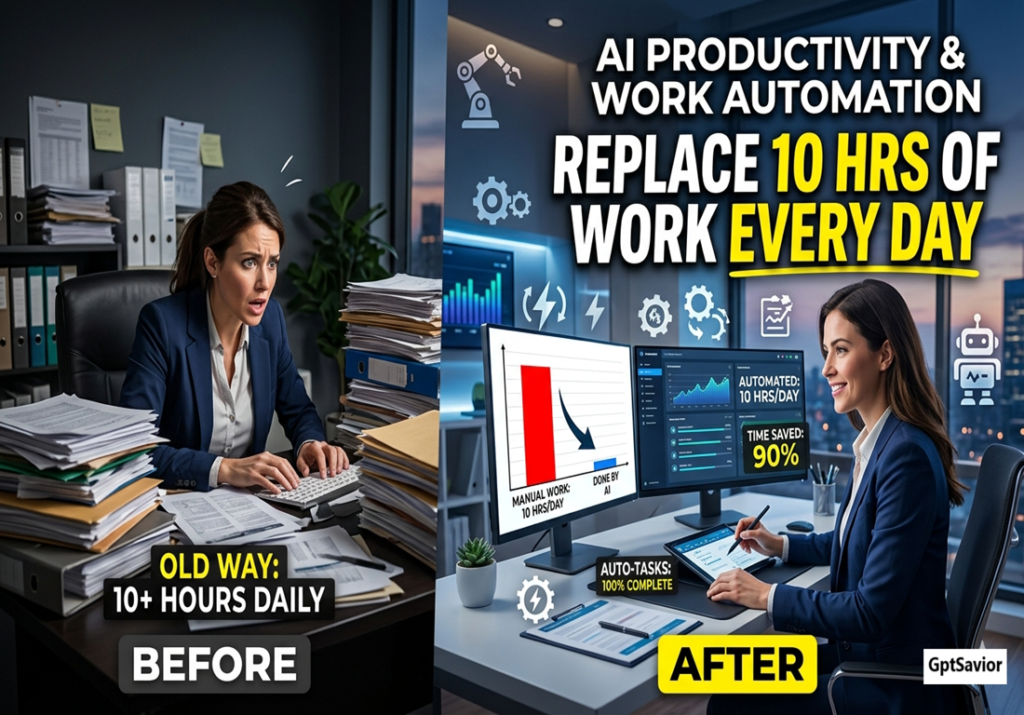
It’s 3:00 PM. You’ve answered 47 emails, moved 12 files between folders, manually copied data from a spreadsheet into a CRM, and attended a meeting about reducing low-value work. Yet your actual project, the one you get paid for, hasn’t seen a single minute of focus.
This isn’t a work ethic problem. It’s a systems problem.
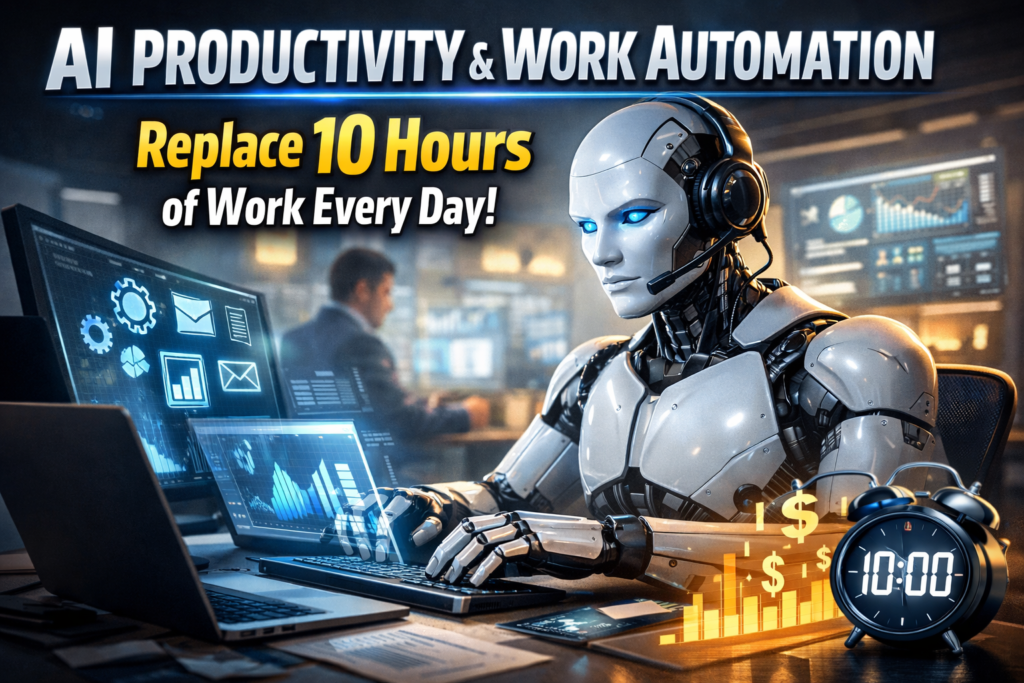
Here’s the uncomfortable truth: most knowledge workers spend 60% of their day on tasks that a machine could handle better, faster, and without needing coffee. That’s where AI Productivity & Work Automation transforms frustration into free time. When applied correctly, AI doesn’t replace your brain; it liberates it.
But let’s be honest: you’ve probably tried a few automation tools before. Maybe a Zap here, an email filter there. And they broke. Or you forgot they existed. Or they saved you 3 minutes but took 2 hours to configure. We’ve all been there.
This guide isn’t theory. It’s the messy, real-world path to making AI Productivity & Work Automation actually work without a computer science degree or a budget the size of a startup’s Series A.
If you want to go deeper and discover the full ecosystem of tools, strategies, and monetization systems, check the complete guide: AI Tools 2026 Full Guide to Earning, Creating & Working 10x Faster.
Solution Overview: Why Most Automation Fails (And How This One Won’t)
Before throwing tools at the problem, let’s understand the real culprit: fragmented context switching.
Every time you leave one app to manually update another, your brain pays a switching cost of up to 20 minutes to regain deep focus. Over a day, that’s 2–3 hours vaporized. AI Productivity & Work Automation eliminates those micro-transitions by acting as a smart bridge between your software.
Common root causes we’ll fix:
- Notification overload. Your tools scream for attention, but none of them prioritize.
- Repetitive data entry: Typing the same information into three different systems.
- Scheduling ping-pong: Four emails to find one meeting time.
- File chaos: Downloading, renaming, re-uploading, and re-downloading again.
Tool categories we’ll use:
- No-code connectors (Zapier, Make, n8n): The glue between apps.
- AI scheduling assistants (Reclaim.ai, Clockwise), dynamic calendar blocking.
- Smart email processors (SaneBox, Shortwave) use AI that filters before you see it.
- Document AI (Zapier’s AI actions, ChatGPT with automation): Extract data from PDFs or emails without retyping.
The goal isn’t to automate everything. That’s a trap. The goal is to automate the annoying things so you can focus on the important things.
Beginners can start monetizing AI quickly by following guides like How to Use AI Tools to Make Money Online, which explains simple freelancing and digital income methods.
Step-by-Step Fix Guide: Your First 7 Days of AI Productivity & Work Automation
Let’s build your first automation. No coding. No confusion.
Day 1: The Audit (Find Your Time Vampires)
Open your calendar and email app. Look back at the last 5 workdays. Identify three tasks you did at least 3 times each that required moving data between apps.
Example: Every time I get a new Calendly booking, I manually add the lead to my Mailchimp audience and send a welcome text via SMS.
Write these down. That’s your automation backlog.
Day 2: Choose Your Connector
For beginners: Zapier (free tier: 100 tasks/month). For tinkerers: Make (visual interface, more complex logic). And for privacy-focused: n8n (self-hostable).
Sign up for one. Connect your two most-used apps (e.g., Gmail + Google Sheets, or Slack + Trello).
Day 3: Build Your First Zap (or Scenario)
Let’s automate saving email attachments to Google Drive.
- In Zapier, create a new Zap.
- Trigger: Gmail → New Email Matching Search (filter for has attachment).
- Action: Google Drive → Upload File.
- Map the attachment URL directly.
- Test with a real email.
proof: The first time I did this, it failed because Zapier couldn’t parse a forwarded email. I added a filter for from: external domain only, and it worked. Expect small failures, fix them once, and benefit forever.
If you’re still overwhelmed with repetitive tasks, this AI productivity workflow framework will show you exactly how to eliminate busywork and focus only on high-impact tasks.
Day 4: Add AI Intelligence
Now upgrade. Instead of just saving files, have AI read the content.
Use Zapier’s AI by Zapier action:
Trigger: New email → AI: Extract the invoice number, due date, and total amount from this email body → Action: Create a row in Google Sheets.
Result: Every invoice email automatically becomes a searchable row in a spreadsheet. No typing.
Day 5: Set Up Scheduling Automation
Stop playing calendar tag. Connect Reclaim.ai to your Google Calendar. Set habits (e.g., deep work from 9–11 AM) and tasks (e.g., write a report that takes 2 hours). Reclaim auto-positions them around your existing meetings. It even reschedules when things overrun.
Day 6: Filter Your Inbox With AI
Create a Gmail filter that applies a label “Read Later” to all newsletters. Then, inside Shortwave, use AI to summarize long threads into three bullet points before you open them.
Day 7: Monitor and Iterate
Review your automation dashboard. How many tasks did it run? What failed? What surprising opportunity appeared? (For me: I realized I was spending 45 minutes weekly renaming screenshots, so I added an AI rename step.)
You now have a working AI Productivity & Work Automation system. From here, it’s continuous improvement.
Content creators can scale productivity even further using the AI Content Ideas System, which helps generate unlimited viral topics for social media and blogs.
Real Use Cases:
Case 1: The Overwhelmed Project Manager
Maria (remote PM, team of 12) was drowning in status updates. Every morning, she gathered Slack messages from 5 channels, copied them into a Word doc, reformatted, and emailed stakeholders.
Failed attempt: She tried a simple Slack-to-email automation, but it sent raw, ugly messages.
Working solution:
- Trigger: Scheduled every weekday at 8:30 AM.
- Action: Slack → Search for status update messages from the last 24 hours.
- AI action: Summarize each team member’s update into one sentence per person.
- Format with HTML.
- Email to stakeholders.
Result: 7 hours/month saved. Her team now actually reads the updates because they’re concise.
After boosting your efficiency, the next step is following this AI time-saving blueprint to reclaim 20+ hours every single week
Case 2: The Freelance Writer’s Admin Nightmare
David (freelance writer) spent 3 hours weekly on: saving briefs from email to Notion, tracking invoices, and following up on late payments.
Working solution:
- Gmail label Invoice → Trigger → AI extracts amount, due date, client email.
- If due date < today → AI drafts follow-up email (friendly but firm).
- All brief attachments auto-save to the Notion database, tagged with the client name.
Result: 12+ hours saved monthly. He now uses that time to write, not to chase.
Common Mistakes (And How They Break Your Automations)
| Mistake | Why It Fails | Fix |
|---|---|---|
| Automating before auditing | You digitize useless tasks faster | Only automate tasks you hate doing |
| Ignoring error handling | One failed step breaks the whole chain | Add “fallback paths” (e.g., if no attachment, send Slack alert) |
| Overcomplicating the first Zap | 15-step automations break constantly | Start with 2–3 steps, then expand |
| No human-in-the-loop | AI sends wrong data confidently | Always add an approval step for critical actions (e.g., payments) |
| Using different email addresses | The trigger never fires because it’s looking for the wrong form. | Standardize your send-from addresses |
Comparison Table: Top 5 AI Work Automation Tools
| Tool | Best For | AI Features | Free Tier | Complexity | Time Saved (Weekly Est.) |
|---|---|---|---|---|---|
| Zapier | General business connectors | AI actions (extract, summarize, classify) | 100 tasks/month | Low | 3–5 hours |
| Make | Visual complex logic | Integrates with OpenAI, Anthropic | 1,000 ops/month | Medium | 5–8 hours |
| n8n | Privacy & custom code | Self-host AI models | Unlimited (self-host) | High | 6–10 hours |
| Reclaim.ai | Calendar optimization | Smart habit scheduling, auto-breaks | Basic free | Low | 2–4 hours |
| Shortwave | Email overload | AI summaries, smart prioritization | 14-day trial | Low | 3–6 hours |
Verdict: If you’re new, start with Zapier + Reclaim.ai. If you’re technical, n8n is unbeatable for cost and control.
Learn how to write unique AI-powered articles that pass plagiarism checks and rank higher on Google using advanced SEO strategies: Secrets of Writing Unique AI Articles and SEO Optimization
Advanced Tips (Pro-Level Optimization)
1. Use Scheduled Triggers for Batch Processing
Instead of running automations instantly (which can get expensive), schedule them once per hour. For example: collect all new CRM leads at 9:00 AM, 1:00 PM, and 4:00 PM. Process them in bulk. This respects API rate limits and feels less chaotic.
2. Add Human-in-the-Loop Checkpoints
Never let AI send a contract or post on social media without a review step. Use Slack Approval buttons inside your automation:
AI drafts message → Posts to private Slack channel with ✅/❌ buttons → Only sends if you click ✅.
I learned this the hard way when an AI accidentally told a client, “We can deliver this impossible feature by tomorrow.” The client was not amused.
3. Chain Multiple AI Actions
One trigger can fire an AI to extract data, then another AI to reformat it for a specific API, then a third to check for contradictions. Example: New support ticket → AI extracts urgency → If urgent, AI rephrases for executive summary → Slack DM to manager.
4. Monitor Automation Health With a Dashboard
Create a Google Sheets log that every automation writes to: timestamp, success/fail, error message. Review it weekly. The most common silent killer is an API change you didn’t notice for weeks.
Once you understand AI productivity, you’ll need tools, so check AI automation tools to save 20+ hours weekly
Your Week Just Got 15 Hours Longer
You’ve seen the blueprint. The tools exist. The only thing missing is action.
AI Productivity & Work Automation isn’t a futuristic fantasy; it’s a practical discipline you can implement starting today. The three core takeaways:
- Audit before automating. One hour of tracking reveals your biggest time leaks.
- Start stupidly small. A two-step automation that works is infinitely better than a ten-step one that breaks.
- Add AI intelligence slowly. First, make it reliable, then make it smart.
Your move: Pick one task from your audit, just one, and automate it by this Friday. Experience the weird joy of watching a machine do your least favorite chore. Then chain another. And another.
Set a 15-minute calendar block right now titled First AI Automation Setup. Use that time to create a free Zapier account and connect your email to a spreadsheet. I promise you: six months from now, you’ll wish you had done it sooner.
Now go reclaim your focus. Your real work is waiting, then return to this article and comment on your opinion
اDiscover step-by-step methods to build an AI Agent and start making money online using no-code tools and practical automation systems: How to Create an AI Agent and Make Money Step by Step
FAQ:
Q1: Can AI Productivity & Work Automation really save me 10+ hours a week?
Yes, but only if you automate high-frequency, low-cognitive tasks. Most users save 5–8 hours weekly after one month. The 10–15 hour range requires automating cross-department workflows (e.g., sales → support handoffs).
Q2: Do I need to know how to code to set up work automation?
No. The tools listed above (Zapier, Make, Reclaim) are no-code. However, learning basic logic, like if/then and filter, helps tremendously. You can learn that in an afternoon.
Q3: What’s the difference between RPA and AI automation?
RPA (Robotic Process Automation) follows rigid rules like clicking the same buttons every time. AI automation handles variation, like understanding different email phrasings. Modern AI Productivity & Work Automation combines both.
Q4: Will this get my data stolen?
Reputable tools use encryption and comply with GDPR/CCPA. For sensitive data (health, legal), use self-hosted n8n or Tines. Never let AI send PII (personally identifiable information) to a third-party model without anonymizing it first.
Q5: How do I convince my boss to let me set this up?
Offer to run a 30-day pilot with your own tasks. Track time saved. Present results like: I spent 3 hours setting up AI automation that now saves me 6 hours/month. At my hourly rate, that’s $[X] back to the company monthly. Can we roll this to the team? Numbers win.
Q6: What if an automation makes a mistake?
Always include a review before sending the step for external-facing actions. Also, set your automations to log every action to a spreadsheet. If something goes wrong, you can manually revert and fix the logic.

2 thoughts on “AI Productivity & Work Automation: Replace 10 Hours of Work Every Day”