
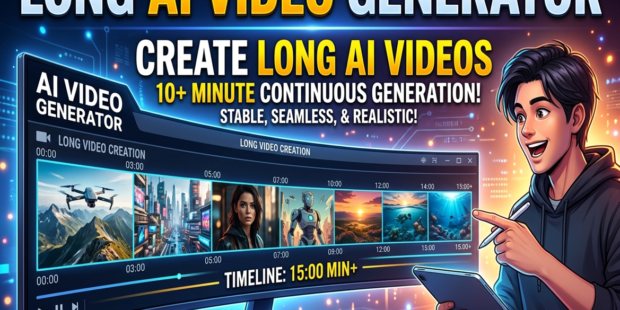
What you will learn: This article provides a complete, step-by-step workflow for creating high-quality long-form videos with a Long AI video generator. You’ll learn how to bypass the common limitations of short, disjointed AI clips by building a structured production pipeline that synthesises scriptwriting, narration, visual generation, and editing into a cohesive 15-minute final product. I share my personal journey, from initial tool selection to troubleshooting, comparing top free and paid solutions like Kling, Seedance, and Google Vids. The piece includes a detailed tutorial, best practices, and practical answers to FAQs about converting text into lengthy, engaging video content.
How I Created a 15-Minute AI Video in 30 Minutes (Free Tools + Full Workflow)
When I first tried to create a 10-minute explainer video using a long AI video generator, I hit a wall. Every tool I tested capped me at 5 to 8 seconds, which meant I’d need to generate and stitch together over 100 separate clips.
By clip fifty, the characters had changed faces, the backgrounds flickered between scenes, and the voiceover sounded like three different people were fighting for control. I was drowning in timeline cuts, mismatched visuals, and creative frustration.
After weeks of testing over a dozen platforms and experimenting with different production strategies, I finally cracked the code. What I discovered is that the secret isn’t looking for a generator that magically produces 15 minutes in one go (most don’t exist yet), but building a modular, script-led workflow for creating extended AI video content.
In this guide, I’ll walk you through the exact methods and tools I use, sharing my successes, failures, and the precise steps to turn a simple script into a polished, lengthy video without losing your mind or your budget.
People looking for new income opportunities are exploring AI passive income strategies and automated online business ideas to stay ahead of future job disruption.
Why Most Long-Form AI Video Generators Still Struggle (And How I Fixed It)
Before we dive into the solution, it’s important to understand the problem. Almost every AI video tool available today was designed for social media. Models like Runway’s Gen-3, Kling 1.6, and even Google’s Veo 3 have a “sweet spot” of about 5 to 8 seconds for a single generation.
Trying to push them further introduces what’s known as “temporal drift,” where the model forgets what the previous scene looked like, leading to inconsistent characters, shifting objects, and sudden style changes.
This wasn’t a deal-breaker for me; it just forced me to adapt my approach. Instead of fighting the technology, I set up a production pipeline for long-form AI video generation that mimics how a real animation studio works. I break my final 15-minute video into short, manageable segments, usually around 10 to 15 seconds each.
With a solid script and a visual plan, I can generate each clip individually, knowing they’ll blend seamlessly later. The real test was finding a combination of free and low-cost tools that could handle this process without costing a fortune or requiring a high-end gaming PC.
AI video tools are also widely used in education. Discover how in
AI for teachers: practical guide
The Complete Toolkit: Free and Low-Cost Software Stack for Creating Long AI Videos
My toolkit relies on a mix of local, open-source software and generous free tiers from major providers. You don’t need a supercomputer; a decent internet connection and a modern laptop are enough. Here’s what you need:
- Scripting & Prompt Engineering: ChatGPT-4o (free tier) or Claude 3.5 Sonnet. I start by writing a complete script and use the AI to generate detailed visual descriptions for each segment. This is the blueprint that ensures character and scene continuity.
- Text-to-Video Generation: Kling 1.6 (free tier with watermarked videos up to 10 seconds) and Seedance (known for its high aesthetic quality and generous free daily credits). For extended narrative control, I use Veo 3.1 through Google Vids, which offers 10 free 8-second generations per month and works directly in your browser.
- Audio & Voiceover: ElevenLabs (free tier for a few minutes of high-quality narration) or Microsoft Edge’s built-in “Natural” voices for a zero-cost, surprisingly good option.
- Video Editing & Assembly: DaVinci Resolve (completely free, professional-grade) or CapCut (free with a beginner-friendly interface). This is where all the magic of piecing the puzzle together happens.
- Asset & Stock Media: Pexels and Pixabay (free, royalty-free stock footage) for backgrounds and filler clips when generating everything from scratch is unnecessary.
By combining these, you can build a zero-cost long-form AI video production pipeline that rivals expensive, all-in-one solutions.
Creators adapting to the AI economy are using AI video generation tools for building faceless YouTube businesses at scale.
My Step-by-Step Setup: From Script to a 15-Minute Finished Video
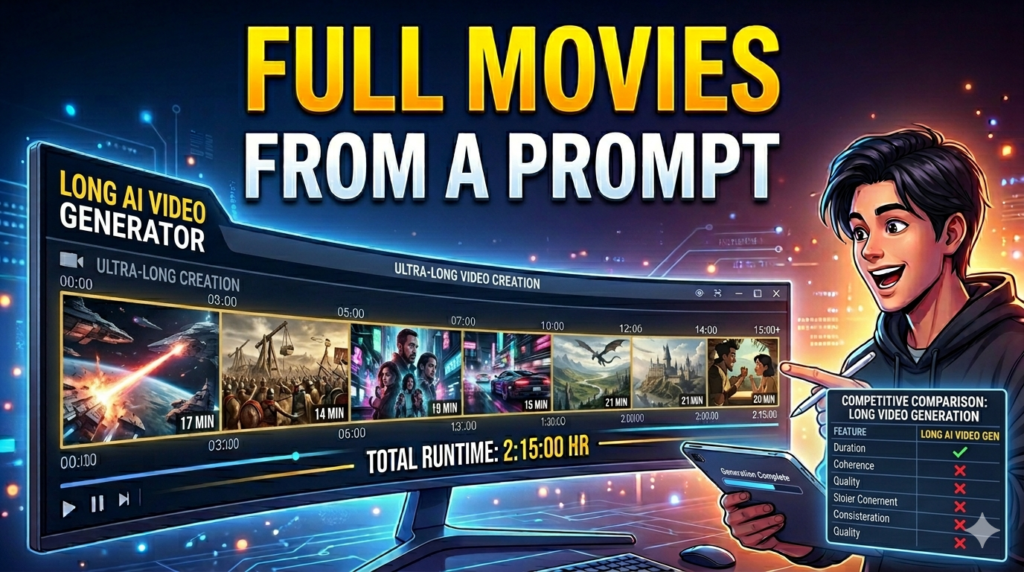
Creating a long AI video is 80% planning and 20% execution. Rushing the script will lead to a disjointed final product. Here is my systematic approach to using a long AI video generator to create extended content.
Step 1: The Master Script and Scene Breakdown
Start by writing a complete script for your video. A 15-minute video at a conversational pace is roughly 1,800 to 2,000 words. Don’t write it as a monologue; instead, break it into “scenes” of 3 to 4 sentences each.
For every scene, write a “visual prompt”, a description of what should be on screen. For example, if your narration says, “The early steam engine was a marvel of its time,” your visual prompt could be, “Cinematic shot, steampunk-style train engine, copper and brass details, slow dolly-in, dramatic lighting.” This step is non-negotiable for consistency.
For better results, always choose the right AI model, as explained in
ChatGPT vs Gemini vs Claude comparison guide
Step 2: Generating Narration
Copy your script into ElevenLabs. Choose a voice that fits your topic for tutorials. I prefer “Adam” or “Antoni.” The free tier gives you about 10,000 characters per month, which is perfect for a few projects. If you’re out of credits, use Microsoft Edge’s “Natural” voices for free.
Download the audio as an MP3 and import it into DaVinci Resolve. The audio track will serve as the master timeline, and we’ll populate the video track around it.
Step 3: Batch Generating Your Video Clips (The Core Workflow)
This is where the long AI video generator workflow kicks into high gear. I use Kling 1.6 for its excellent motion quality and Seedance for its stunning visual fidelity. Here’s my process:
- Set up each scene as a separate generation in your AI tool. Use your “visual prompt” as the text input.
- For Kling, I set the duration to 10 seconds, aspect ratio to 16:9, and motion scale to medium.
- Crucial tip for continuity: I always include a reference to the previous scene in my prompt. For example, “A young woman in a bright red jacket walking through a futuristic city, medium shot. Continue from the previous scene where she looked at a holographic kiosk.” This tricks the AI into maintaining a degree of coherence.
Step 4: Assembly and Enhancement in the Editor
Import all your generated clips into DaVinci Resolve. Drag them onto the timeline, aligning them with your narration. You will immediately notice rough cuts, flickers, and mismatches. Use a “cross dissolve” transition (0.5 seconds) between every single clip.
This is my secret weapon; it smooths over 90% of continuity errors and makes the video feel professional. Add a consistent background music track (lowered to -25dB) to fill empty sonic space.
To create long AI videos efficiently, you need strong scripts. Learn how to use
powerful prompts to write code and structured content
Practical Use Cases and Real-World Comparisons
The method works for an astonishing range of content. I’ve used it to create historical documentary-style videos for my educational YouTube channel, customer onboarding tutorials for a tech startup, and even short promotional brand stories for social media.
To help you choose the best engine for your project, I compiled a comparison of the top tools I used. This table focuses specifically on the factors relevant to long-form AI video creation.
| Tool | Max Single Clip (Free) | Visual Consistency | Motion Quality | Best For | Cost (Monthly) |
|---|---|---|---|---|---|
| Kling 1.6 | 10 seconds | Good | Excellent | Action, cinematic scenes | $10 |
| Seedance 1.5 | 5 seconds (free tier) | Very High | Very Good | High-fidelity, artistic shots | $15 |
| Veo 3.1 (Google Vids) | 8 seconds | Excellent | Smooth, realistic | Realistic, everyday scenarios | $0 (limited) |
| Pika Labs 2.0 | 5 seconds | Moderate | Innovative (Pika Effects) | Creative, abstract, meme videos | $8 |
| Runway Gen-3 | 10 seconds | Good | Very Good | High-quality, prompt-adherent clips | $12 |
Before choosing any tool, it’s important to understand the differences between AI models. Check this guide: ChatGPT vs Gemini vs Claude: which one is better?
Pro Tips and Professional Insights for Flawless Long-Form AI Video
After many trials of a long AI video generator, I have developed a set of pro tips that save time and prevent headaches. These are the insights I wish I had on day one.
- Think in B-Rolls, Not Whole Scenes: Don’t try to generate a person talking for an entire scene. Generate a 10-second clip of a person typing, then a 5-second clip of a coffee cup steaming, then an 8-second clip of a city skyline. The narration plays over all of them. This is how real documentaries are made.
- The “Character Lock” Hack: Most free AI models don’t have a reliable “seed” or “character reference” feature. So, my hack is to generate a single, high-quality master image of your character from the front, side, and back using an AI image generator. For each new video clip, upload the appropriate master image as a “start frame” or “image prompt.” This forces the AI to use your character’s face as a starting point, massively improving consistency.
- Work in Parallel: Start generating the next batch of clips in Kling while you are editing the previous clips in DaVinci Resolve. The generation time is the biggest bottleneck (often 2–5 minutes per clip). By multitasking, you can realistically assemble a 15-minute video in about 90 minutes, not 30.
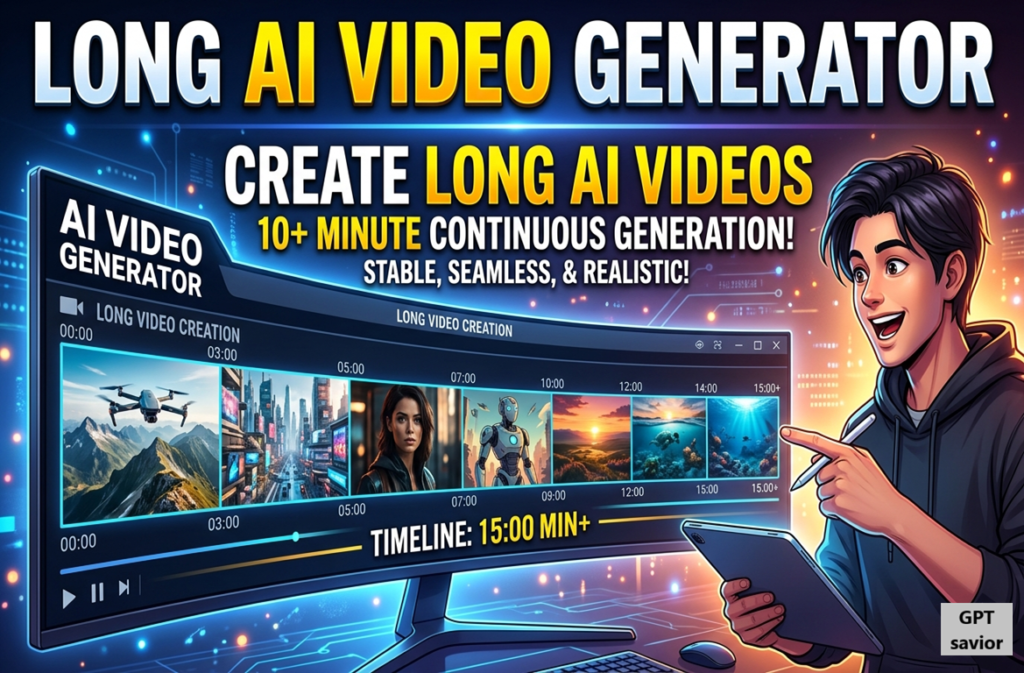
Anyone preparing for future careers should learn the AI jobs and salary trends shaping the future employment market before demand explodes.
The Biggest Mistakes You’ll Make (And How to Avoid Them)
My journey was paved with errors that cost me hours of work. Avoiding these pitfalls will drastically increase your chance of success.
- Mistake 1: Generating Out of Order. You will be tempted to generate the most exciting scenes first. Don’t. Generate in strict narrative order. When you generate linearly, the AI’s “short-term memory” is fresher, and the style of your last clip naturally influences the next one. If you skip around, every scene will look completely different.
- Mistake 2: Forgetting to Remove Watermarks. Free tiers are amazing, but they always throw a watermark on your clip. Before you assemble all 90 clips, batch-process them through a free online watermark remover or simply crop the video by 5% in DaVinci Resolve to cut the logo out. Don’t wait until the end; you will have to redo your entire timeline.
- Mistake 3: Ignoring Your Audio. Bad audio ruins a perfect video. An 8-second clip doesn’t sound like much, but when you stitch 100 of them together, the ambient background noise of each clip creates a terrible hissing sound. Always mute the original audio of all your AI-generated clips. Only keep your master narration and background music track from Step 2.
You can also automate repetitive tasks like communication using
AI to automate email replies and save hours daily
FAQ:
1. Can I really generate a 15-minute AI video for free?
Yes, absolutely. Using the combination of free tools like ChatGPT for scripting, ElevenLabs’ free tier for narration, and the daily credits from Kling or Seedance, you can generate a 15-minute video without spending a cent. The only cost is your time and patience.
2. What is the best long AI video generator for YouTube documentaries?
For documentaries requiring high realism and smooth motion, Kling 1.6 is currently the best. For those prioritising stunning, almost cinematic visual quality, Seedance is superior. And for a free, browser-based solution for realistic scenes, Google Vids with Veo 3.1 is more than enough.
3. Is there an AI that can generate a 10-minute video in one go?
Not really in the consumer space. Models like OpenAI’s Sora and Lightricks’ LTX Studio are pushing boundaries, but most are research previews or can single-frame generations to around 60 seconds. The current state-of-the-art for public users is still the “stitching method.”
4. How do I keep characters consistent across the entire video?
The easiest free method is my “Character Lock” Hack: generate reference images of your character and use them as image prompts for every video clip you generate. This provides a consistent visual anchor for the AI model to work from.
5. Which free video editor is best for beginners for long AI videos?
CapCut is the best free option for absolute beginners. Its interface is intuitive, and it has built-in stock music and sound effects. For more serious creators, DaVinci Resolve is the industry-standard, free professional tool, but it has a steeper learning curve.
When publishing AI-generated videos, make sure your content is safe by learning.
How to fix AI plagiarism detection issues
